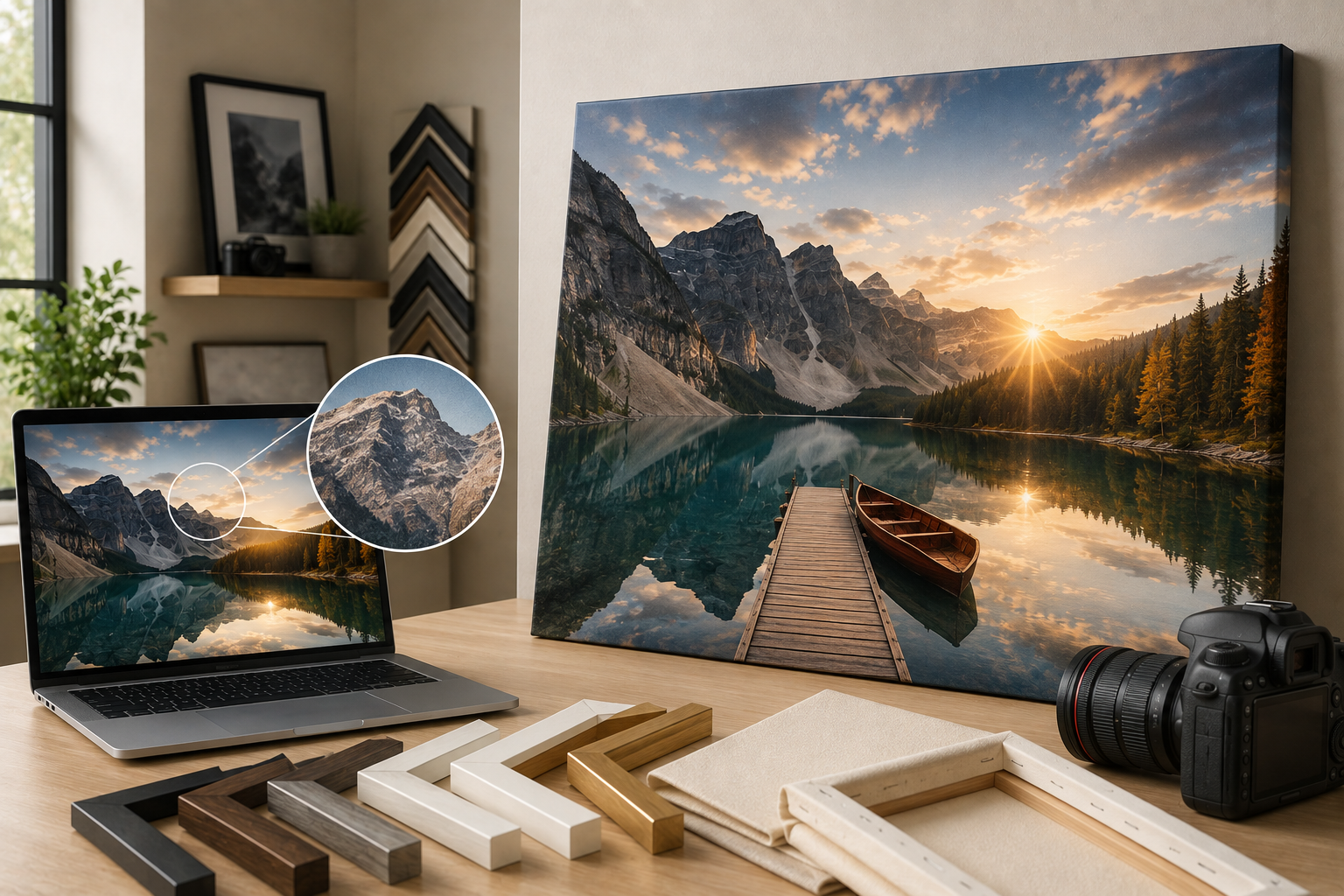
For sharp large canvas wall art, aim for at least 150–300 DPI (dots per inch) at the final print size. As a rough guide: a 16x20 inch canvas needs roughly a 6-megapixel photo, a 24x36 inch canvas needs around 12+ megapixels, and anything larger benefits from 20+ megapixels or a professional camera source. Phone photos from the last several years are usually fine for canvases up to about 24 inches; images downloaded from social media or messaging apps are almost always too compressed for anything above a small custom frame. Most custom frames providers offering online framing in Dubai will flag this automatically before checkout.
The single most common reason a large canvas wall art order disappoints isn't the printer, the canvas material, or the frame around it — it's the photo file itself. A photo that looks perfectly sharp on a phone screen can turn soft, blurry, or pixelated once it's blown up to 24x36 inches or larger. This isn't a quality-control failure on the printer's end; it's simple math. Small files don't contain enough information to fill a large canvas cleanly, no matter how good the frames and printing equipment are. This guide breaks down exactly what resolution you need for your next custom frame order, how to check what you actually have, and what to do if your photo falls short — whether you're ordering through online framing in Dubai or picking up locally.
The Core Formula (No Math Degree Required)
Print resolution is measured in DPI — dots of ink per inch of physical print size. The standard target for a sharp canvas photo prints result is 150–300 DPI, with 300 DPI being the gold standard for close-viewing pieces and 150 DPI being acceptable for large pieces viewed from a few feet back, which is how most canvas wall art actually gets viewed in a living room or hallway.
The formula is simple: pixel dimensions ÷ desired print size in inches = DPI. A photo that's 3600 pixels wide, printed at 24 inches wide, gives you 150 DPI (3600 ÷ 24 = 150) — acceptable for a large piece. That same photo printed at 36 inches wide drops to 100 DPI, which starts to look visibly soft up close.
You don't need to do this math by hand every time — most online framing and printing platforms will flag a low-resolution file automatically before you check out. But knowing the formula helps you understand why a photo gets flagged, rather than just seeing a vague warning.
It's also worth knowing that DPI isn't a fixed property of an image file — it's a relationship between the pixel dimensions and the size you're printing at. The exact same photo file can be a perfectly sharp 200 DPI at a small size and a soft 80 DPI at a much larger size. This is why a photo that printed beautifully as an 8x10 framed print can look noticeably softer stretched across a 30x40 inch canvas — nothing about the file changed, only the size it's being asked to cover.
Resolution Requirements by Canvas Size
|
Canvas Size |
Minimum Recommended Resolution |
Approx. Megapixels Needed |
|
8x10 in |
1200 x 1500 px |
2 MP |
|
12x16 in |
1800 x 2400 px |
4 MP |
|
16x20 in |
2400 x 3000 px |
6–7 MP |
|
20x24 in |
3000 x 3600 px |
9–10 MP |
|
24x36 in |
3600 x 5400 px |
12–15 MP |
|
30x40 in |
4500 x 6000 px |
20+ MP |
|
40x60 in |
6000 x 9000 px |
30+ MP (pro camera recommended) |
These figures target 150 DPI, which is standard for large-format viewing distance. For close-viewing pieces or gallery-quality framed canvas prints, aim for the higher end of each range or closer to 300 DPI where the file allows it.
3 Warning Signs Your Photo Won't Print Well
1. It came from a screenshot or a messaging app. WhatsApp, Instagram DMs, and most messaging apps compress images heavily on send, often stripping out 70-90% of the original file size. A photo that looked crisp when your friend sent it is usually far below print quality by the time it reaches you.
2. Zooming in on your computer shows visible blur or blockiness. If you zoom to 100% on the actual pixel dimensions and the image already looks soft at that size, it will look worse once stretched larger onto canvas.
3. The file size is unusually small for what it claims to be. A photo under 1MB claiming to be “high resolution” is a red flag — genuine high-resolution phone or camera photos are typically several megabytes, not a few hundred kilobytes.
How to Check Your Photo's Resolution
On a phone: open the photo, check its details or info panel (usually a swipe-up or an “i” icon), and look for the pixel dimensions — for example, 4032 x 3024. Compare that against the table above for your intended canvas size.
On a computer: right-click the file, open its properties or “Get Info,” and look for the pixel dimensions or resolution listed under image details. Mac and Windows both surface this without needing separate photo framing or editing software.
Through your printing provider: most reputable canvas printing services and online framing platforms — including most frame shops now operating online framing dubai services — will run this check automatically once you upload a file, flagging anything below the recommended threshold for your selected size before you complete the order.
What If Your Photo Is Too Low-Res?
Choose a smaller size. The simplest fix is often to print smaller — a photo that's too soft at 30x40 inches might look perfectly sharp at 16x20 inches. Scaling down the canvas size proportionally increases the effective DPI.
Source the original file, not a shared copy. If the photo came from a photographer, event, or professional shoot, ask for the original high-resolution export rather than a version that's already passed through social media or messaging compression.
Use AI upscaling cautiously. Modern upscaling tools can improve moderately low-resolution images, but they can't invent detail that was never captured — a severely compressed or blurry source photo will still show artifacts after upscaling, just less obviously than before.
Consider a different photo entirely. If the resolution genuinely can't support the size you want, it's often better to pick a different photo you have in higher quality than to force a soft, visibly pixelated print for the sake of one specific image.
Order a smaller test print first for borderline cases. If a photo sits right at the edge of acceptable resolution for the size you want, a smaller test canvas can confirm whether the quality holds up before committing to the full large canvas wall art size and cost.
Visit a frame shop near me if you want to inspect the file in person. Some picture frame shop near me locations can review your photo on a large monitor before printing, which is a useful sanity check if you're unsure whether an online resolution warning is being overly cautious.
Common Photo Sources and Their Typical Resolution
Modern smartphone camera (direct from camera roll): usually 12–48 megapixels — generally excellent for canvas sizes up to 30x40 inches or larger, as long as the photo wasn't re-saved or re-shared through another app first.
DSLR or mirrorless camera: typically 20–45+ megapixels — comfortably supports the largest large canvas wall art sizes without resolution concerns.
Downloaded from Instagram, Facebook, or WhatsApp: almost always compressed down to well below print quality, regardless of how sharp it looked on-screen — treat these as suitable only for small custom frames, not large canvas work. Most frames providers will reject these files outright for oversized orders.
Screenshots: capped at your device's screen resolution, which is rarely sufficient for anything beyond a small print — a screenshot is essentially never a good source for large canvas wall art.
Old digital camera or early smartphone photos (pre-2015 roughly): often only 5–8 megapixels, which limits print size to small-to-medium canvases even though the photo itself may be perfectly sharp.
Ordering Large Canvas Wall Art Online in Dubai
Most canvas printing dubai providers now check file resolution automatically as part of the online framing and ordering process, which removes most of the guesswork — but it helps to upload your intended photo early and check for warnings before finalizing size, mat, or custom frame choices around it. If you're comparing canvas printing price uae quotes across providers offering online framing dubai, ask specifically whether resolution checks happen automatically or only on request, since some frame shops will happily print a low-resolution file without warning you, leaving you with a soft result you can't return.
Look for a canvas printing services provider or custom frames platform that offers:
• Automatic resolution warnings before checkout, not after
• Size recommendations based on your actual file, not just a generic size chart
• A live preview so you can visually assess sharpness before committing
• UAE-wide delivery for canvas prints dubai and beyond, including canvas printing abu dhabi and Sharjah, through fast online framing
A Real Example Worth Knowing
A customer once tried to print a beautiful sunset photo at 40x60 inches for a living room feature wall — the photo looked stunning on their phone. The original file, however, had been downloaded from an old Facebook post years earlier rather than sourced from the original camera roll, and it measured under 2 megapixels. At that size, the resulting print would have looked visibly soft from just a few feet away. The fix wasn't complicated: tracking down the original photo from a backup drive, still well over 20 megapixels, solved the problem entirely and the final canvas wall art print came out sharp. The lesson holds for almost every low-resolution complaint in canvas printing — the photo you're looking at and the file you're about to print are often not the same thing.
Businesses ordering multiple pieces at once — hotels, offices, showrooms — run into this at scale. A wholesale picture frames order of ten identical frames across a lobby wall only looks cohesive if every single photo meets the same resolution bar; one soft image in a row of otherwise sharp custom frames stands out immediately.
Resolution is the one factor in large canvas wall art that can't be fixed after the fact — a great custom frame, premium canvas material, or skilled printing can't compensate for a source photo that simply doesn't contain enough detail for its intended size. The good news is that checking resolution takes thirty seconds and the fix, when needed, is usually just picking a smaller size or tracking down the original file. Get this one step right, and everything downstream — the print, the frame, the finished piece on the wall — has a real chance of looking as good as it did on your screen. Whether you order custom frames through online framing in Dubai or visit a shop in person, resolution is the one thing worth checking before anything else.
Bring your memories to life with Picframes.com — Frame Your Moments, Preserve Your Story.
Frequently Asked Questions
1. What resolution do I need for a large canvas print?
Aim for 150–300 DPI at your final print size — roughly 12–15 megapixels for a 24x36 inch canvas, and 20+ megapixels for anything larger than 30x40 inches.
2. Can I use a photo downloaded from Instagram or WhatsApp for a large canvas print?
Generally no. Messaging and social media apps compress images heavily, so downloaded copies are usually far below the resolution needed for large canvas wall art, even if they looked sharp on screen.
3. How do I check my photo's resolution before ordering a canvas print?
Check the pixel dimensions in your phone's photo details or your computer's file properties, then compare those dimensions against a size-to-resolution chart for your intended canvas size.
4. What happens if I print a low-resolution photo on a large canvas?
The print will likely appear soft, blurry, or pixelated, especially up close, since there isn't enough image data to fill the larger surface area cleanly.
5. Can AI upscaling fix a low-resolution photo for canvas printing?
It can improve moderately low-resolution images, but it can't recover detail that was never captured — severely compressed or blurry photos will often still show quality issues after upscaling.